
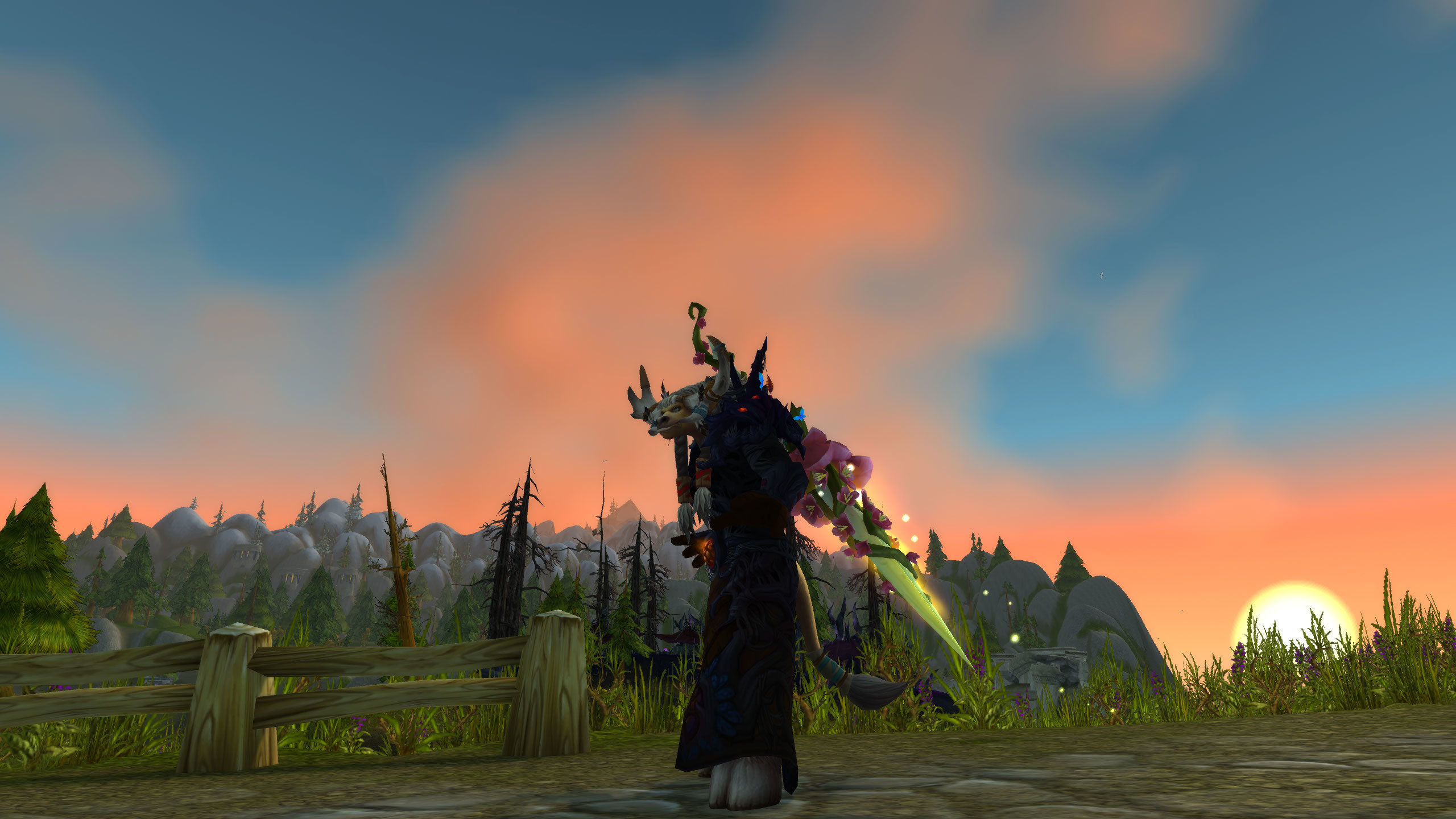
World of Warcraft contains one of the most visually diverse virtual worlds ever created, yet many players experience it only in motion, focused on efficiency and combat readability. WoW photography, often dismissed as a niche hobby, represents a different way of engaging with the game. It treats Azeroth not as a backdrop for objectives, but as a subject worthy of deliberate composition, lighting control, and visual storytelling.
This article explores how players can use advanced settings and addons to capture high quality screenshots, and why thoughtful image creation deepens appreciation for the game’s world design.
Seeing Azeroth as a Visual Space
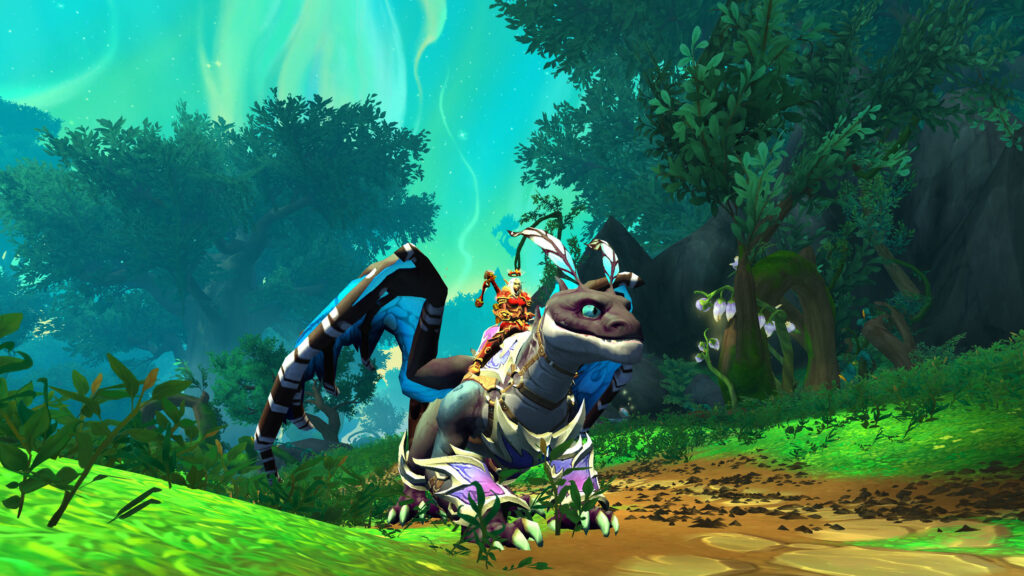
Photography in WoW begins with a shift in perspective. Instead of evaluating zones based on quest flow or traversal speed, photographers assess them in terms of composition, color harmony, and spatial balance. Mountains frame horizons, ruins create leading lines, and weather effects establish mood.
This perspective reveals design intent that often goes unnoticed during normal play. Zones are built with layered depth, intentional sightlines, and environmental contrast. Slowing down allows these elements to emerge, transforming familiar locations into visually rich subjects.
Advanced Graphics and Camera Settings
Default settings prioritize performance and clarity during combat, which often undermines visual fidelity. Adjusting camera distance, field of view, and post processing options dramatically improves screenshot quality. Increasing view distance and environmental detail restores depth that is otherwise flattened.
Camera control is equally important. Adjusting pitch, yaw, and zoom allows photographers to avoid distorted perspectives and create balanced framing. Small changes in camera height can alter scale perception, making structures feel imposing or intimate depending on intent.
Lighting, Time of Day, and Weather
Lighting is the single most important factor in WoW photography. The same location can appear entirely different depending on time of day or weather state. Low angle lighting during sunrise or sunset creates long shadows and warm tones, while overcast conditions produce muted, melancholic atmospheres.
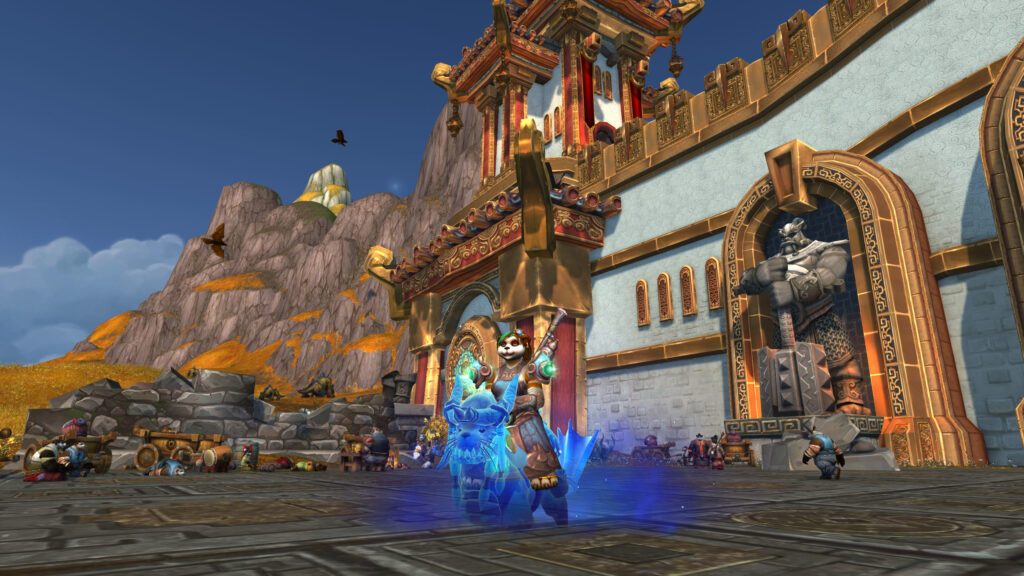
Understanding how light interacts with terrain and architecture allows photographers to plan shots rather than react to randomness. Waiting for specific conditions often yields stronger results than capturing the first available moment.
Essential Tools and Addons for WoW Photography
- Camera control addons that allow fine positional adjustment
- Interface removal tools to eliminate visual clutter
- Time and weather manipulation tools for controlled conditions
- Depth of field enhancements for subject isolation
- High resolution screenshot utilities for sharper output
Composition and Visual Storytelling
A compelling screenshot does more than display a location. It tells a story. Composition techniques such as rule of thirds, foreground framing, and leading lines guide the viewer’s attention and suggest narrative context. A lone figure against a vast landscape implies isolation, while clustered elements suggest conflict or community.
Character placement also matters. Armor silhouettes, weapon angles, and posture contribute to the image’s tone. Even static poses can convey motion or emotion when framed deliberately. The goal is not realism, but intention.
Conclusion: Photography as World Appreciation

WoW photography transforms how players relate to Azeroth. By engaging with the world visually rather than mechanically, photographers uncover layers of artistry embedded in zone design, lighting, and environmental storytelling. This practice encourages mindfulness and patience in a game often defined by speed and optimization.
Advanced settings and addons are not shortcuts to better screenshots, but tools that enable creative control. When combined with an understanding of composition and light, they allow players to capture images that reflect not just how the world looks, but how it feels. In doing so, WoW photography becomes a form of exploration that persists long after the screenshot is taken.